

9 min read • 1,845 words
How to Automate Everyday Tasks With Modern Technology
In today’s fast-paced world, finding ways to automate everyday tasks has become essential for maximizing productivity and efficiency. With the rapid advancement of technology, individuals can leverage various tools and devices to simplify their daily routines. Automation can save individuals up to 30% of their time on repetitive tasks, allowing them to focus on more important aspects of their lives or work. Whether it’s managing household chores or streamlining professional workflows, understanding how to implement automation can significantly enhance your quality of life.
This article will explore various methods to automate everyday tasks, including the use of smart home devices for controlling lighting, heating, and security systems. Additionally, we will discuss task automation software that can improve workflow efficiency, as well as email filters and auto-responders that help manage inbox clutter. Lastly, we will highlight the role of AI chatbots in enhancing customer service by providing instant responses, making it easier for businesses to engage with their clients.
Step-by-Step Tutorial

Step 1: Identify Repetitive Tasks
Identifying repetitive tasks is the first crucial step in automating your daily activities. Follow these sub-steps to create a comprehensive list of tasks that can be automated:
- Track Your Activities: For one week, keep a detailed record of all the tasks you perform. You can use a notebook or a digital tool like a task management app. Write down everything you do, from checking emails to making phone calls.
- Classify Your Tasks: After tracking your activities, categorize them into personal and professional tasks. This will help you see where automation can be applied in different areas of your life.
- Identify Repetitive Tasks: Look for tasks that you perform regularly, such as checking emails, scheduling appointments, data entry, or even grocery shopping. Highlight tasks that take up a significant amount of time or require consistent effort.
- Evaluate the Frequency: For each task, note how often you perform it. Tasks that occur daily or weekly are prime candidates for automation.
- Consider the Impact: Think about which tasks, if automated, would save you the most time and energy. Prioritize these tasks for automation.
By following these steps, you will create a comprehensive list of tasks that can be automated. Remember to include all tasks, no matter how small, to avoid missing potential automation opportunities. This foundational step will set the stage for implementing technology solutions that can streamline your daily routines.
Step 2: Research Automation Tools
1. **Identify Your Needs**: Begin by revisiting the tasks you want to automate. Make a list of these tasks, noting their specific requirements and the platforms you currently use. This will help you narrow down the tools that can effectively meet your needs.
2. **Explore Popular Automation Tools**: Start your research by looking into well-known automation platforms. Some of the most popular options include:
– **Zapier**: Known for its user-friendly interface, Zapier connects various apps and automates workflows without requiring coding skills.
– **IFTTT (If This Then That)**: This tool allows you to create simple conditional statements, enabling automation between different services and devices.
– **Microsoft Power Automate**: Ideal for businesses already using Microsoft products, this tool integrates seamlessly with Office 365 and other Microsoft services.
3. **Read User Reviews and Tutorials**: To gain insights into each tool’s capabilities, read user reviews on platforms like G2 or Capterra. Additionally, watch tutorials on YouTube or check the official documentation to understand how each tool works.
4. **Check Integrations**: Ensure that the automation tool you choose integrates with the applications you currently use. Look for a comprehensive list of supported integrations on the tool’s website.
5. **Evaluate Pricing**: Before committing to any tool, review its pricing structure. Some tools offer free tiers, while others may have subscription fees. Make sure to choose a tool that fits your budget.
By following these steps, you will create a shortlist of suitable automation tools tailored to your specific tasks.

Step 3: Choose Your First Task to Automate
Choosing your first task to automate is a crucial step in your journey towards efficiency. Follow these sub-steps to make a clear and manageable choice:
- Review Your List of Tasks: Look at the list of tasks you compiled in the previous steps. Identify which tasks you perform frequently and which take up a significant amount of your time. This will help you pinpoint a task that can provide immediate benefits once automated.
- Select a Simple Task: Start with a task that is straightforward and has clear, defined steps. For instance, if you often send the same email to multiple recipients, this could be a great candidate for automation. Simplicity is key to building your confidence in automation.
- Assess the Automation Tools Available: Consider the tools and software you have at your disposal. For example, if you choose to automate email responses, you might use a tool like
ZapierorIFTTT. Ensure that the task you select can be easily automated with the tools you are comfortable using. - Set Clear Objectives: Define what you want to achieve by automating this task. For example, if your goal is to save time, estimate how much time you currently spend on the task and how much you hope to save.
- Start Small: Avoid overwhelming yourself by choosing a complex task. Starting small allows you to learn and adapt without the pressure of managing a complicated automation process.
By following these steps, you will be well on your way to successfully automating your first task, paving the way for more complex automations in the future.
Step 4: Set Up the Automation Tool
1. **Create an Account**: Begin by visiting the website of your chosen automation tool, such as Zapier, Integromat, or Automate.io. Look for the “Sign Up” or “Get Started” button, and click on it. Fill in the required information, such as your name, email address, and a secure password. After completing the form, check your email for a verification link and click it to activate your account.
2. **Log In to Your Account**: Once your account is verified, return to the automation tool’s website and log in using your credentials. This will take you to the dashboard where you can start setting up your automations.
3. **Connect Necessary Applications**: Navigate to the section where you can connect apps. This is often labeled as “My Apps” or “Integrations.” Click on the “Add App” button and search for the applications you want to automate, such as your email service or calendar. Follow the prompts to authorize the tool to access your accounts. You may need to log in to each application and grant permissions.
4. **Configure Settings**: After connecting the apps, review the settings for each integration. Ensure that the permissions granted align with your automation goals. Double-check that the correct accounts are linked and that the necessary data can flow between them.
5. **Explore Tutorials**: Many automation tools provide tutorials and guides. Take advantage of these resources to familiarize yourself with the features and capabilities of the tool. This can help you maximize the efficiency of your automations.
6. **Utilize Free Trials**: If available, use free trials to explore different features before committing to a paid plan. This allows you to test various automations without financial commitment.
By following these steps, you will have successfully set up your automation tool and connected it to the required applications, paving the way for a more efficient and streamlined daily routine.
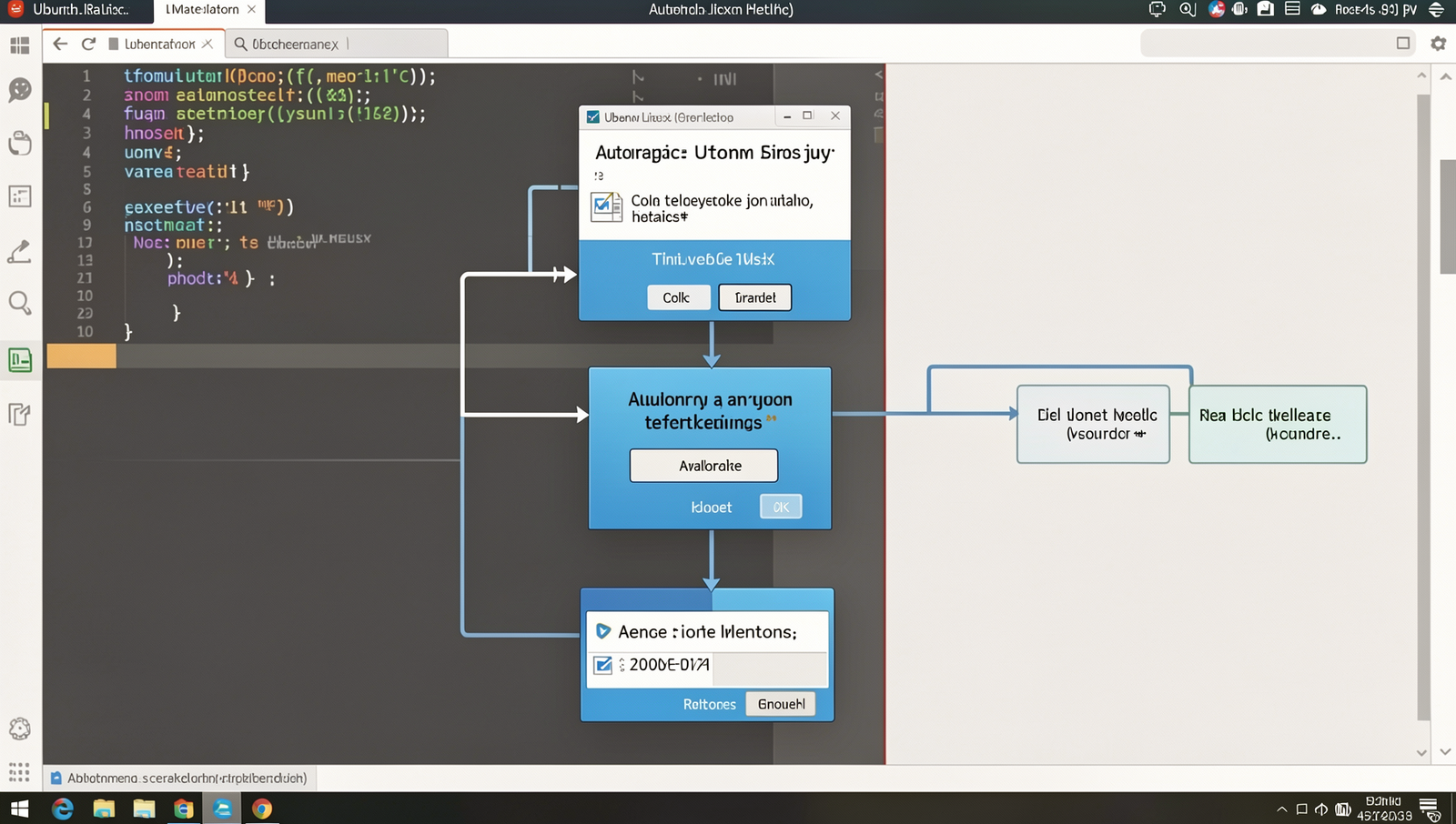
Step 5: Create the Automation Workflow
Creating an automation workflow is a crucial step in streamlining your everyday tasks. Follow these sub-steps to ensure your workflow is functional and efficient.
- Choose Your Automation Tool: Select a tool that suits your needs, such as Zapier, Integromat, or Microsoft Power Automate. Each tool has its own interface and capabilities, so familiarize yourself with the one you choose.
- Define Your Trigger: Identify what event will initiate the automation. For example, you might want to trigger the workflow when you receive a new email. In your automation tool, navigate to the triggers section and select the appropriate trigger. For instance, in Zapier, you would choose “New Email” as your trigger.
- Set Up Actions: After defining the trigger, specify what actions should occur. For instance, if the trigger is receiving an email, you might want to save the attachment to a specific folder. In Zapier, you would select “Save File” as your action and configure the destination folder.
- Test Your Workflow: Before finalizing, run a test to ensure everything functions as expected. This step is crucial; if your workflow doesn’t perform correctly, it could lead to missed tasks or errors. Use the testing feature in your automation tool to simulate the trigger and observe the actions.
- Document Your Workflow: After successful testing, document the workflow for future reference. This can help you or others understand how the automation works and make adjustments if necessary.
By following these steps, you will create a functional automation workflow that simplifies your daily tasks.

Step 6: Test the Automation
Testing your automation is crucial to ensure it operates as intended. Follow these sub-steps to effectively test your automation:
1. **Run a Test Scenario**: Begin by executing the automation in a controlled environment. For example, if you’ve automated email responses, send a test email to see if the response is generated correctly. Use the command:
send_test_email()2. **Monitor the Results**: After running the test, closely observe the output. Check for any errors or unexpected behaviors. If your automation involves data processing, verify that the output matches your expectations. Utilize logging commands to capture the results:
log_results()3. **Adjust Settings as Necessary**: Based on the results, make any necessary adjustments to improve efficiency. This could involve tweaking parameters or refining the logic of your automation. Use the command:
update_automation_settings()4. **Gather Feedback**: If your automation impacts others, solicit feedback from users. This can provide insights into potential issues you may not have noticed. Create a feedback form using:
create_feedback_form()5. **Monitor Over Time**: Keep an eye on the automation for a few days after initial testing. This will help catch any lingering issues early. Set up alerts for failures using:
set_alerts()Be prepared to troubleshoot any issues that arise during testing. Document any problems and their solutions to streamline future testing processes. A well-tested automation should operate smoothly and efficiently, fulfilling its intended purpose without errors.

Step 7: Evaluate and Optimize
1. **Review Performance Metrics**: Begin by gathering data on how well your automation has performed. This could include time saved, tasks completed, and any errors encountered. Use analytics tools provided by your automation software to extract relevant metrics.
2. **Gather User Feedback**: If your automation impacts other users, solicit their feedback. Create a simple survey or hold a meeting to discuss their experiences. Ask specific questions about ease of use, efficiency, and any challenges they faced.
3. **Identify