
9 min read • 1,850 words
How to Protect Your Personal Data in the Digital Age
In an increasingly digital world, the importance of protecting personal data cannot be overstated. With the rise of cyber threats and data breaches, individuals must take proactive measures to safeguard their sensitive information. This article will guide you through essential strategies to protect personal data, ensuring that you remain secure in your online activities. By understanding the risks and implementing effective solutions, you can significantly reduce the chances of falling victim to identity theft or data misuse.
Readers will learn practical steps to enhance their online security, such as using strong, unique passwords for each account and enabling two-factor authentication (2FA) to add an extra layer of protection. Additionally, we will discuss the importance of regularly updating software and devices to defend against vulnerabilities, as well as the need to be cautious when using public Wi-Fi networks. By reviewing privacy settings on social media and limiting publicly shared information, you can take control of your digital footprint.
Step-by-Step Tutorial
Step 1: Use Strong Passwords
Creating strong passwords is essential in protecting your personal data in the digital age. Follow these sub-steps to ensure your passwords are robust and secure:
- Create Complex Passwords: Your password should be at least 12 characters long and include a mix of uppercase letters, lowercase letters, numbers, and special characters. For example, instead of using “password123,” opt for something like “P@ssw0rd!2023.”
- Avoid Easily Guessable Information: Do not use personal information such as your name, birthday, or common words. These can be easily guessed or found through social media. Instead, consider using a passphrase that combines unrelated words, such as “BlueSky!Dance&2023.”
- Change Passwords Regularly: To enhance security, change your passwords at least every 3-6 months. This practice minimizes the risk of unauthorized access, especially if your password has been compromised.
- Enable Two-Factor Authentication: Whenever possible, activate two-factor authentication (2FA) for your accounts. This adds an extra layer of security, requiring not only your password but also a second form of verification, such as a text message code.
- Avoid Reusing Passwords: Do not use the same password across multiple sites. If one account is compromised, others will be at risk. Use a password manager to keep track of unique passwords for each account.
- Do Not Share Your Passwords: Keep your passwords confidential. Avoid sharing them via email or text, as these methods can be intercepted.
By following these steps, you will create strong, unique passwords for each of your accounts, significantly reducing the risk of unauthorized access to your personal data.
Step 2: Enable Two-Factor Authentication (2FA)
Enabling two-factor authentication (2FA) is a crucial step in safeguarding your personal data in the digital age. This additional security measure requires not only your password but also a second form of verification, making it significantly harder for unauthorized users to gain access to your accounts. Follow these steps to activate 2FA on your accounts:
- Choose Your Accounts: Identify which accounts you want to protect with 2FA. Prioritize accounts that contain sensitive information, such as email, banking, and social media.
- Access Security Settings: Log in to the account you wish to secure. Navigate to the security or privacy settings section, which is often found in the account settings menu.
- Enable 2FA: Look for an option labeled “Two-Factor Authentication,” “2-Step Verification,” or similar. Click on this option to begin the setup process.
- Select Your Method: Choose how you want to receive your verification codes. Options typically include SMS, email, or an authenticator app. For enhanced security, opt for an authenticator app like Google Authenticator or Authy.
- Complete the Setup: Follow the prompts to link your chosen method. If using an authenticator app, scan the QR code provided or enter the setup key manually.
- Test 2FA: After setup, log out and attempt to log back in to ensure that 2FA is functioning correctly. You should be prompted for the verification code.
By enabling 2FA, your accounts will be more secure against unauthorized access, even if your password is compromised. Remember to regularly review your 2FA settings and recovery options to ensure they are up to date. Be cautious about SMS-based 2FA, as it can be vulnerable to SIM swapping attacks.
Step 3: Be Cautious with Public Wi-Fi
In today’s digital age, public Wi-Fi networks are ubiquitous, but they can pose significant risks to your personal data. Here are some essential sub-steps to ensure your online safety when using these networks:
- Verify the Network Name: Before connecting to any public Wi-Fi, always check the network name. Many hackers create fake hotspots with names similar to legitimate networks. For example, if you see a network named “CoffeeShop_WiFi,” confirm with the staff that this is indeed the correct network.
- Avoid Sensitive Transactions: Refrain from accessing sensitive information or conducting financial transactions while connected to public Wi-Fi. This includes online banking, shopping, or entering personal details. If you must access sensitive information, consider using a more secure connection.
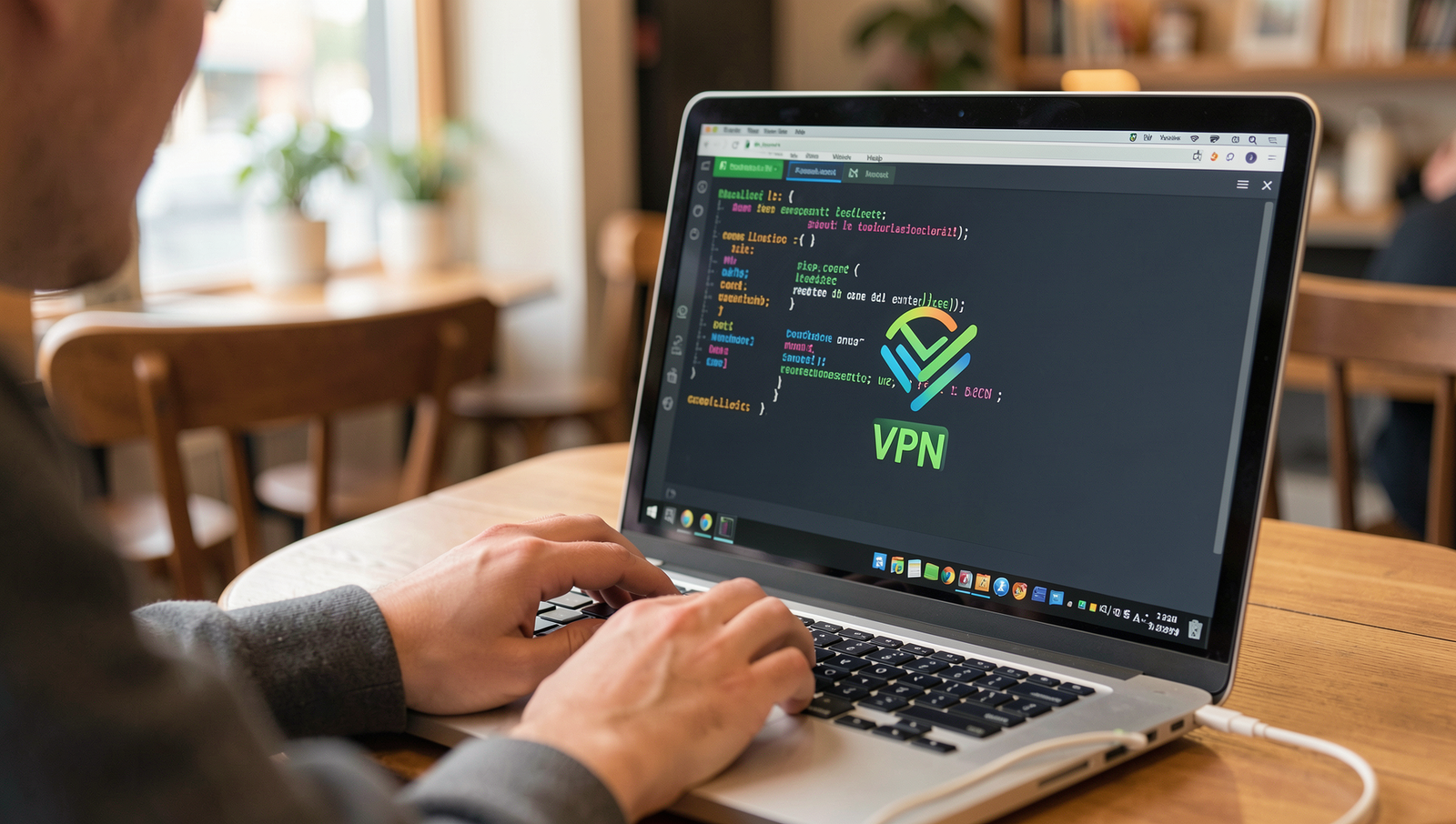
- Use a Virtual Private Network (VPN): If you need to use public Wi-Fi, always connect through a reputable VPN service. A VPN encrypts your internet traffic, making it much harder for hackers to intercept your data. Ensure you choose a well-reviewed VPN that prioritizes security and privacy.
- Turn Off Sharing: Disable file sharing and other sharing options on your device when using public Wi-Fi. This reduces the risk of unauthorized access to your files and personal information.
By following these steps, you can significantly enhance your online security while using public Wi-Fi, minimizing the risk of data interception and protecting your personal information.

Step 4: Regularly Update Software and Devices
Keeping your operating system, applications, and devices updated is crucial for protecting your personal data in the digital age. Here are the detailed instructions to ensure your software and devices remain secure:
- Enable Automatic Updates: Most operating systems and applications offer an option to enable automatic updates. This feature allows your software to download and install updates without your intervention. To enable this feature, navigate to your system settings and look for the updates section. For example, on Windows, you can go to
Settings > Update & Security > Windows Updateand select
Check for updatesto turn on automatic updates.
- Set Reminders for Manual Updates: If automatic updates are not available, set reminders to check for updates regularly. You can use calendar apps or task management tools to schedule a monthly reminder. This ensures that you do not forget to check for critical updates.
- Uninstall Unused Applications: Outdated applications can pose security risks. Regularly review your installed applications and uninstall any that you no longer use. On Windows, you can do this by going to
Settings > Apps > Apps & featuresand selecting the application to uninstall.
- Do Not Ignore Update Notifications: When your device prompts you to update, do not ignore it. These updates often contain important security patches that protect against vulnerabilities. Make it a habit to address these notifications promptly.
By following these steps, you will significantly reduce the risk of security threats and malware attacks on your devices.
Step 5: Be Aware of Phishing Scams
Phishing scams are deceptive attempts to obtain sensitive information by masquerading as trustworthy entities. To protect yourself, follow these sub-steps:
1. **Recognize Suspicious Emails**: Always scrutinize the content of emails you receive. Phishing emails often contain poor grammar, spelling mistakes, or awkward phrasing. Legitimate organizations typically have professional communication standards.
2. **Check the Sender’s Email Address**: Before responding to any email, verify the sender’s email address. Look for slight variations in the domain name that may indicate a scam. For example, an email from “support@yourbank.com” may be legitimate, while “support@yourbank123.com” is likely a phishing attempt.
3. **Hover Over Links**: Before clicking any link in an email, hover your mouse over it to see the actual URL. If the link does not match the expected website, do not click it. This simple action can prevent you from visiting malicious sites.
4. **Use Anti-Phishing Tools**: Consider installing anti-phishing browser extensions and tools. These can help identify and block phishing attempts, adding an extra layer of security to your online activities.
5. **Report Phishing Attempts**: If you receive a suspicious email, report it to your email provider. Many services have mechanisms in place to investigate and take action against phishing attempts.
By following these steps, you will be better equipped to identify and avoid phishing attempts, ultimately protecting your personal data from potential threats. Always remain vigilant, as phishing attacks can be very convincing and may appear to come from legitimate sources.
Step 6: Limit Personal Information Sharing
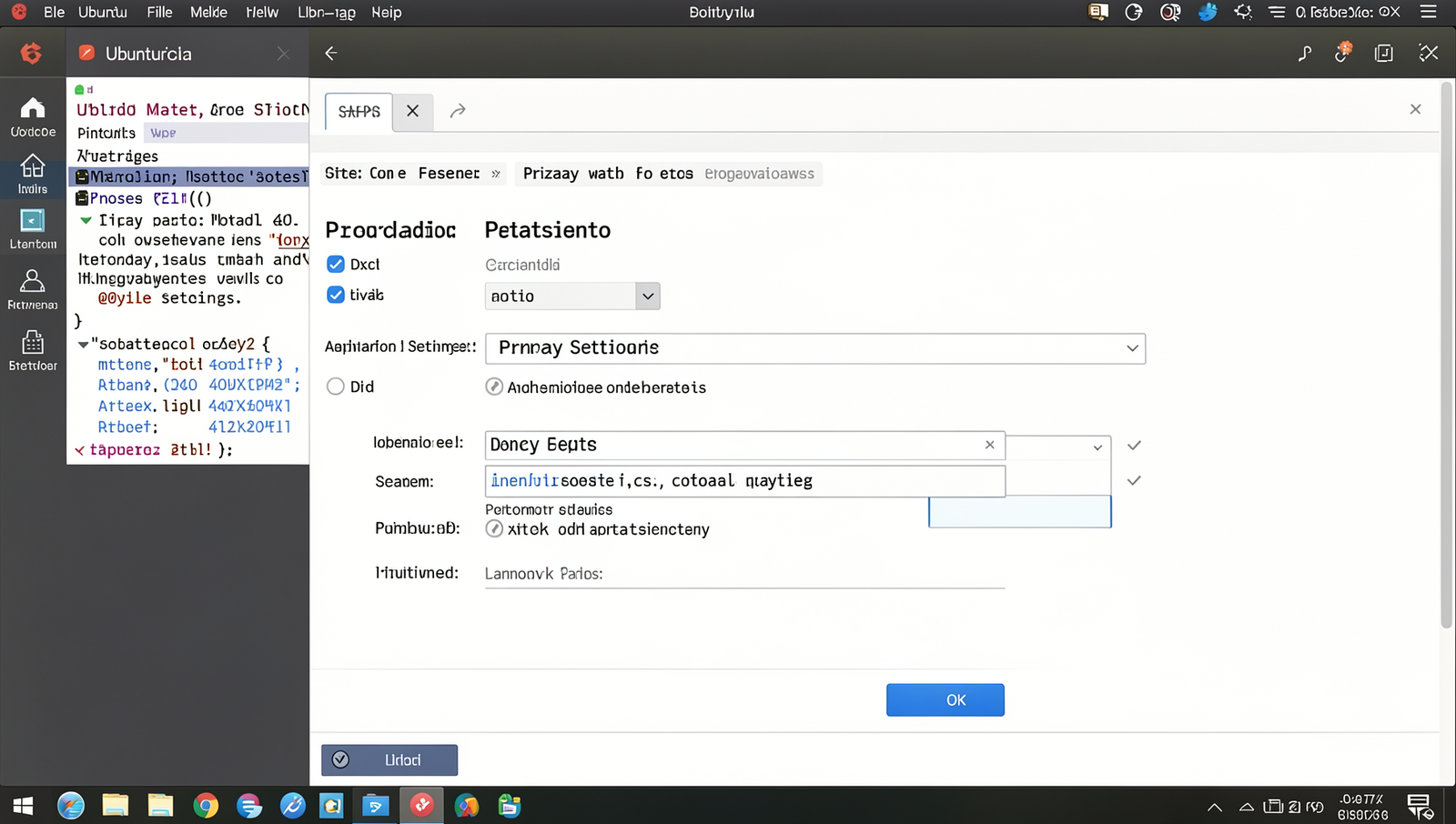
1. **Review Privacy Settings**: Begin by reviewing the privacy settings on all your social media accounts. Most platforms allow you to customize who can see your posts, photos, and personal information. Navigate to the settings menu and select the privacy options. Adjust these settings to limit access to only your friends or trusted contacts.
2. **Be Selective with Friend Requests**: Only accept friend requests from people you know personally. This reduces the risk of your information being accessed by strangers. Regularly audit your friend list and remove any contacts that you no longer recognize or trust.
3. **Think Before You Post**: Before sharing any personal information, consider the potential consequences. Avoid posting sensitive details such as your home address, phone number, or financial information. Additionally, refrain from sharing your location in real-time, as this can alert potential thieves to your absence from home.
4. **Limit Information in Profiles**: When creating or updating your profiles, provide only the necessary information. Avoid filling out optional fields that may reveal too much about you. For example, consider omitting your birth date or hometown, which can be used to answer security questions.
5. **Regularly Review Your Posts**: Periodically review your past posts and remove any that may contain sensitive information. This helps ensure that even if your privacy settings change, your personal data remains protected.
By following these steps, you can significantly reduce the risk of identity theft and keep your personal information secure in the digital age.
Step 7: Monitor Your Accounts Regularly
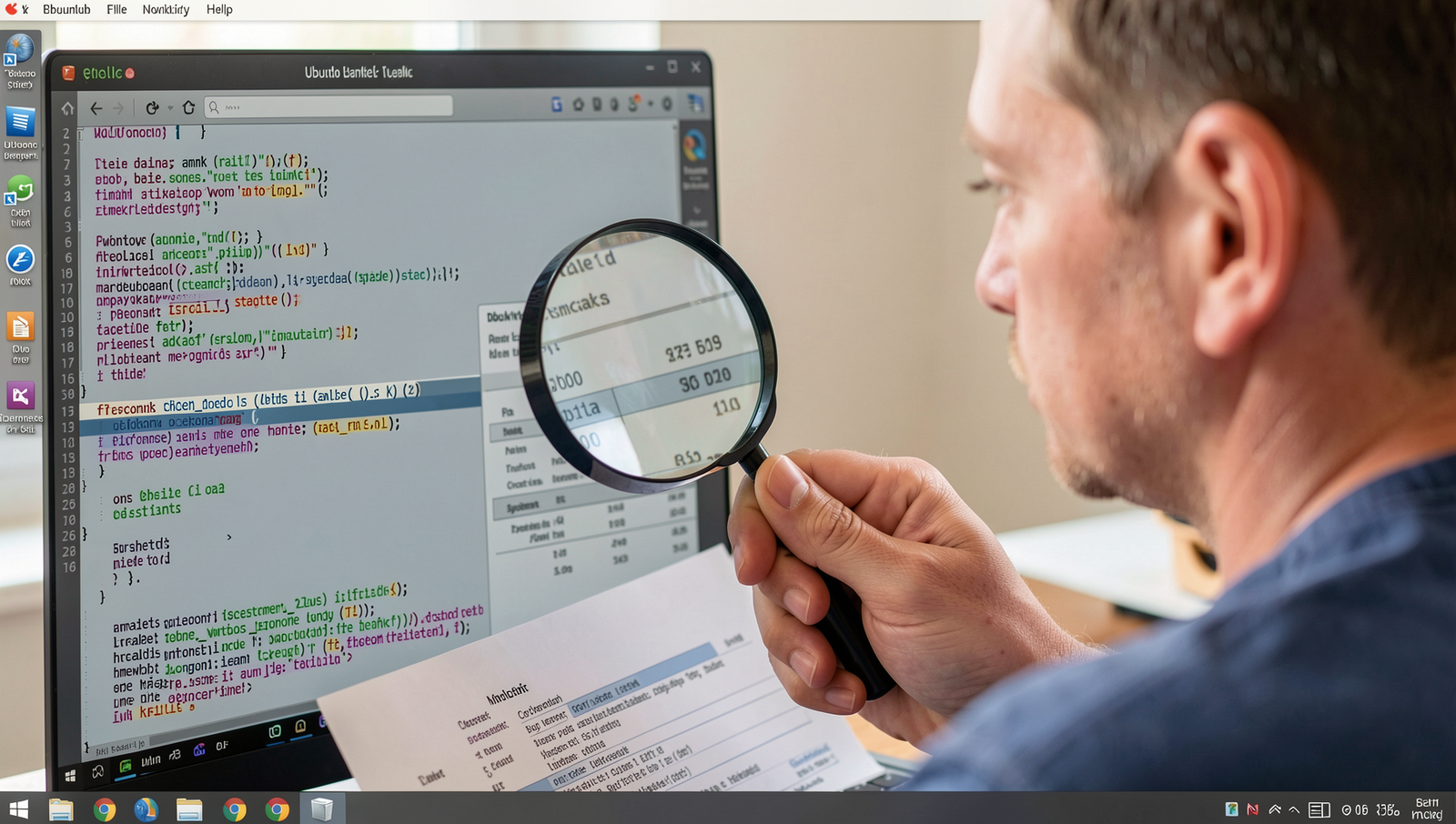
Monitoring your accounts regularly is a crucial step in protecting your personal data in the digital age. By keeping a close eye on your financial activities, you can quickly identify any unauthorized transactions or suspicious changes. Here are the detailed instructions to effectively monitor your accounts:
- Check Bank Statements: Review your bank statements at least once a month. Look for any transactions that you do not recognize. If you find any discrepancies, contact your bank immediately to dispute the charges.
- Review Credit Reports: Obtain a free copy of your credit report at least once a year from each of the three major credit bureaus: Equifax, Experian, and TransUnion. Check for any unfamiliar accounts or inquiries that you did not initiate.
- Set Up Alerts: